 Workletto
Features
Everything in Workletto.
Every feature below is in the free, open-source app, with unlimited users.
Can it do what you need?
Answers come from this page, nothing else.
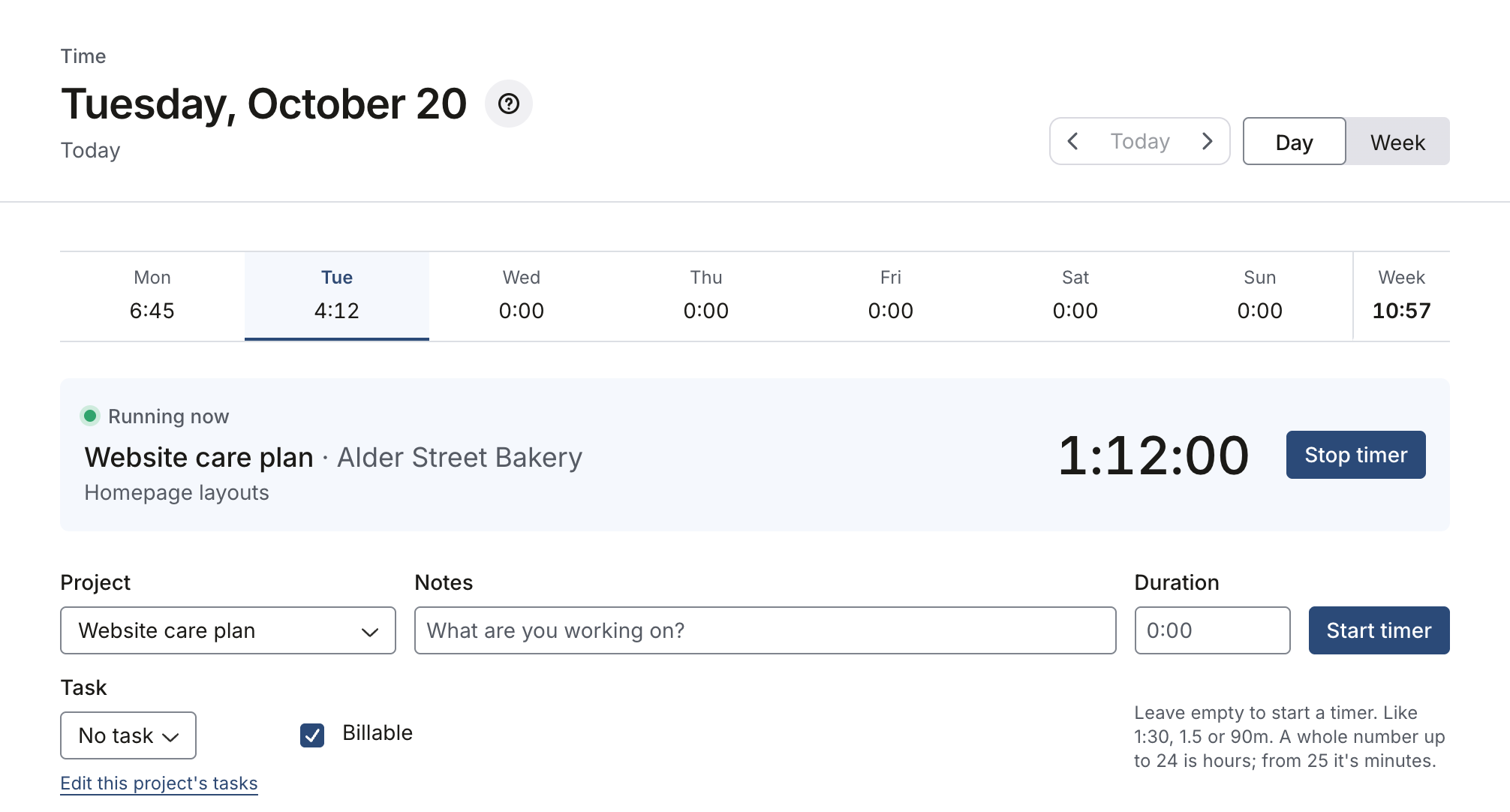
Time tracking and timesheets
Track time while you work, or fill in the week afterwards.
Start a timer when you begin, or type hours in as 1:30, 1.5 or 90m. Each entry has a project, a task and a note on what the time was for.
The weekly timesheet can start from last week’s rows. If an admin turns on approvals, people submit their week and a manager approves it or sends it back with a reason.
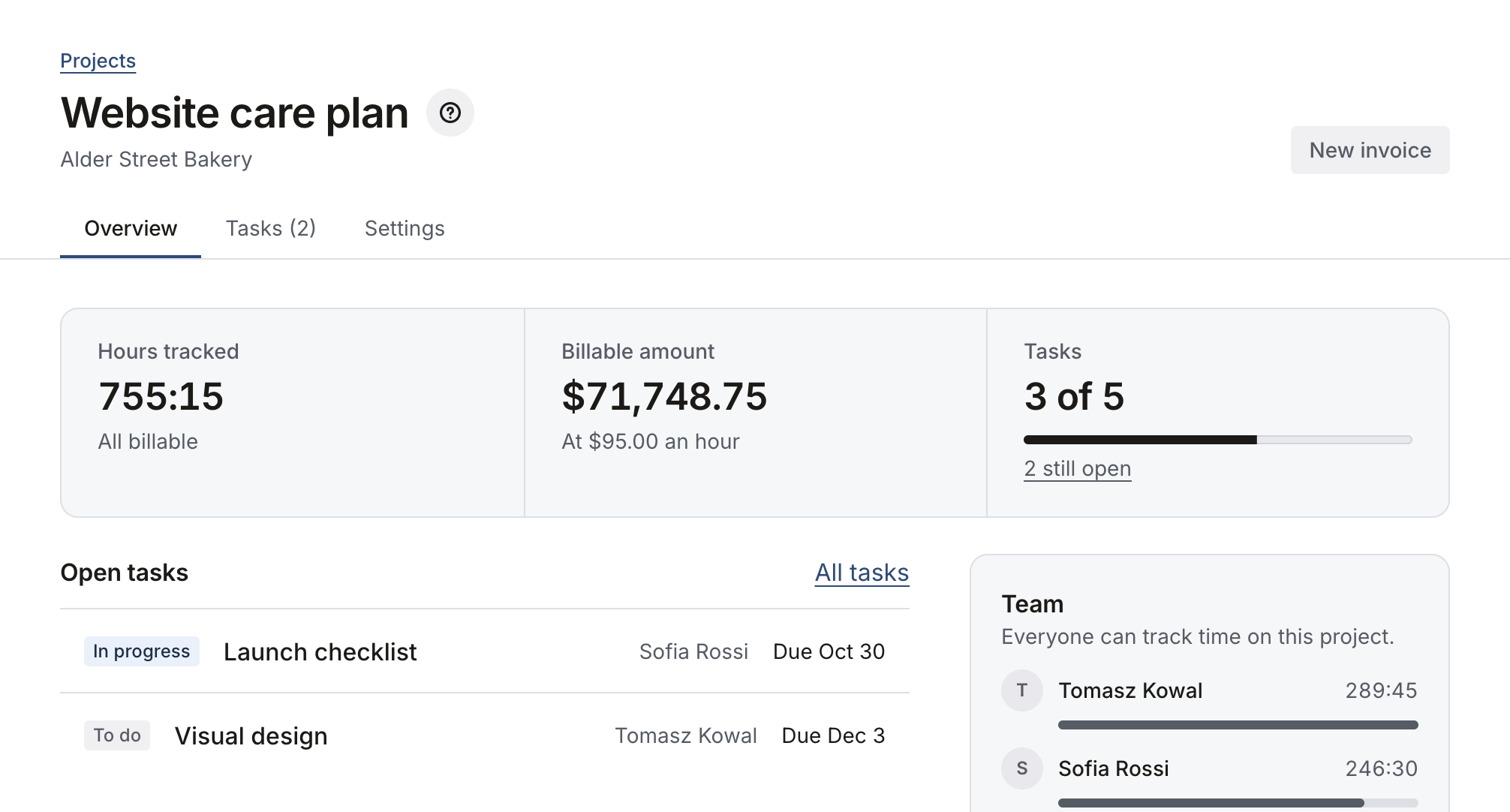
Projects and budgets
Set up clients, projects, rates and budgets.
Each project has tasks, an hourly rate or a fixed fee, and an optional budget in hours or money. A project’s overview shows the hours tracked, the billable amount and each person’s hours.
Admins and managers get an alert when a budget reaches 80% and again at 100%.
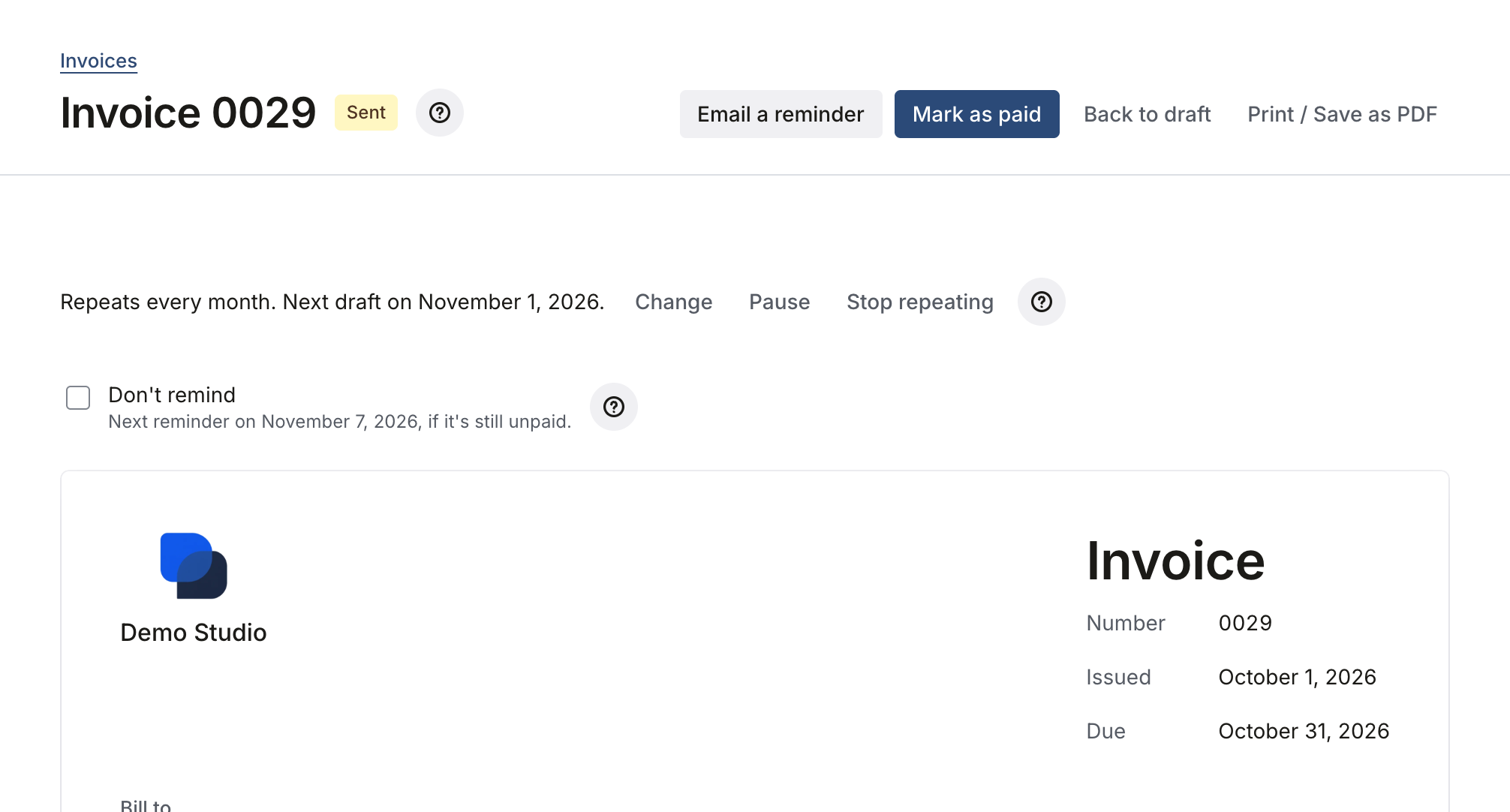
Invoicing and online payments
Turn billable time and expenses into invoices.
Unbilled time and expenses become an invoice with your numbering, tax and discounts. Email it, print it, or set it to repeat every week, month or 3 months.
Clients can pay by card from a link on the invoice. The money goes to your own Stripe account, and the invoice is marked paid.
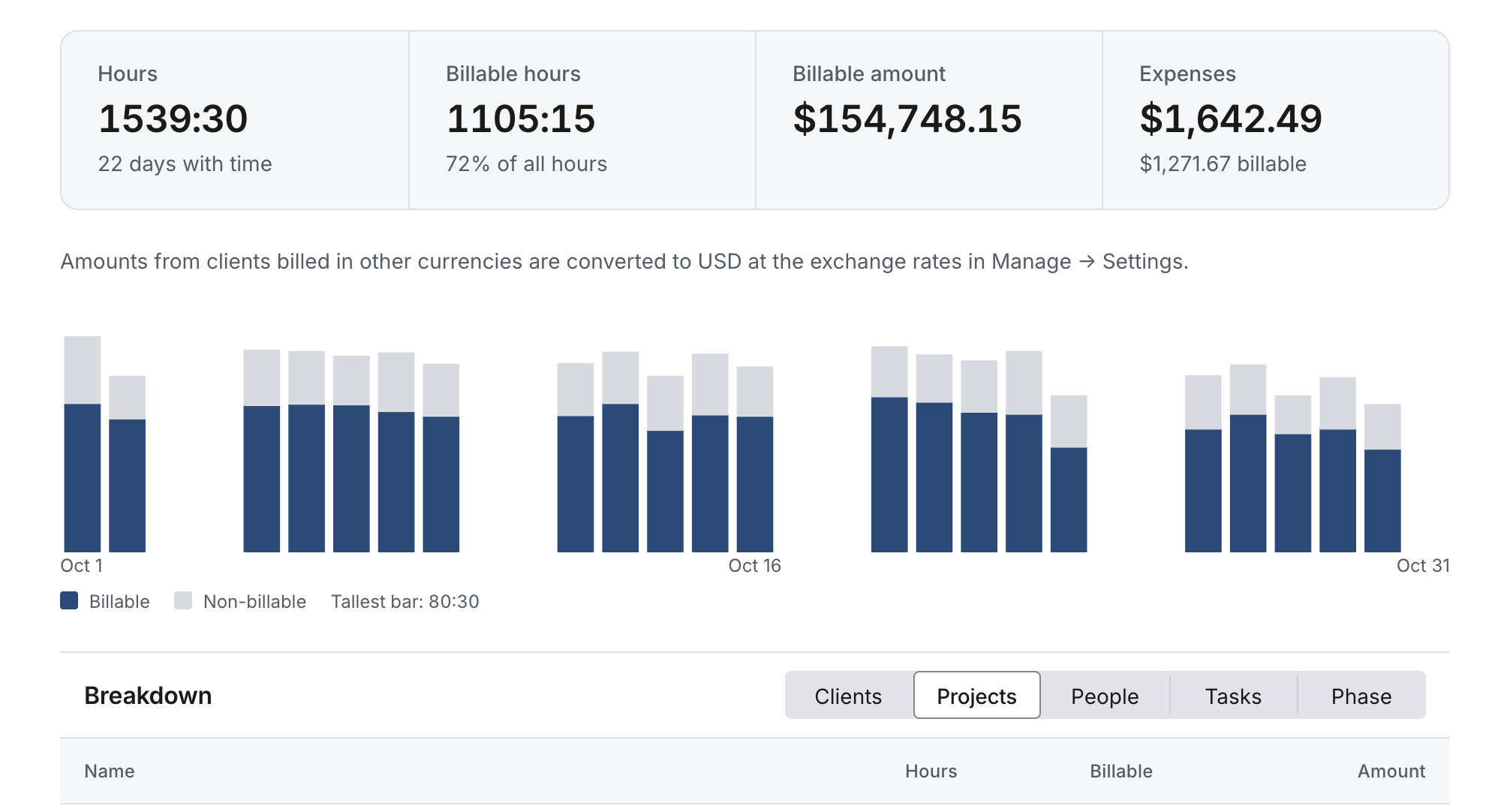
Reports and profitability
Check hours, revenue, cost and profit.
Filter by period, client, project, person or billable status, and download every entry as CSV.
The Profitability tab shows revenue, cost, profit and margin by project, client or person, using what each person’s hour costs you.
Every feature
Each name links to its Help Center article.
Time & timesheets
Track hours as you work, and sign off each week.
A timer, or hours typed in as 1:30, 1.5 or 90m, each with a note, on a weekly timesheet you can start from last week’s rows.
Turn meetings from Google Calendar, Outlook or any iCal calendar into time entries, from a private address or an .ics file. No calendar sign-in to set up.
People submit their week; a manager approves it or sends it back with a reason.
An email each Monday about last week’s timesheet, once email is set up.
Projects & budgets
Clients, projects, rates and budgets, with an alert before a budget runs out.
Projects open to everyone or only to their team, with tasks that have an assignee and a due date.
Save a project’s billing, rates, budget, team and tasks as a template, and start new projects from it.
An hourly rate per project, or each person’s own rate.
What each person’s hour costs you.
Bill an agreed fee instead of hours, in full or in parts, and see what’s left to bill. Or a fee per phase, each billed on its own.
A budget in hours or money on any project, and how much of it is used.
Admins and managers get an alert when a budget reaches 80% and when it reaches 100%.
Reports & profitability
Hours, revenue, cost and profit, by client, project or person.
Hours and money by client, project, person or task, for any period, with every entry as CSV.
Revenue, cost, profit and margin, by project, client or person.
Invoicing & expenses
Turn billable time and costs into invoices your clients can pay online.
Unbilled time and expenses become an invoice with your numbering, tax, discounts and PO number. Email it with reminders, or print it.
Bill each client in its own currency; reports add everything up in yours.
Download sent invoices as a file QuickBooks Online or Xero imports, to the cent.
Repeat an invoice every week, month or 3 months. Each repeat is a new draft for you to check and send.
Clients are emailed about unpaid invoices 3, 7 or 14 days after the due date, then every 7 days, up to 3 reminders. Turn them off for any one invoice.
Clients pay by card from a link on the invoice. The money goes to your own Stripe account, and the invoice is marked paid.
Costs on a project with their receipts, billed to the client or paid back to the person.
Team & security
Invite your team, and choose what each person can see.
Scheduling and resource planning
Plan each person’s hours a week by project, against their capacity after time off and holidays. Over-booked weeks are flagged, and everyone sees their own plan.
Vacation, sick days and holidays, with optional approval; they come off capacity on the Team page.
Admin, manager and member roles
Members see their own time; managers and admins see money. The Team page shows who worked how much.
Sign in with Google Workspace, Microsoft Entra ID or Okta, and require it for everyone but admins if you like.
Teams or departments to filter the Team page, Schedule, Approvals and Reports, and to add to a project in one step. Roles stay as they are.
A code from an authenticator app after the password, with one-time backup codes. Admins can require it for everyone and reset it for someone who lost their phone.
Called Change history in the app: who changed time, money, people and settings, and when.
Your brand & your data
Your brand on every screen, your own hosting account, and your data in exports and backups.
Your own fields on time entries, projects and clients, as text, a number or a list. Filter and group reports by a list, and get them in every CSV export.
Your logo, colors and name (white label)
Your logo, colors and app name on every screen, in light or dark mode.
Bring your time history in from Harvest’s Detailed time report.
Runs in your own hosting account
Four steps and no code on Render. Another host or your own server takes more steps. Use your own web address, and download backups to restore into a new install.
The full code, in a private GitHub repository of your own. Want a feature? Ask an AI coding assistant like Claude or Codex to add it to your copy.
Not on this page? Then Workletto doesn’t do it. You have the source code, so you can add it to your own copy: see Change Workletto with AI, or browse the Help Center.
Install it in about 5 minutes.
Free and open source, on your own hosting account. The install guide takes you through each step.